ufw-manager-tui: The Friendly Firewall Manager for Linux Beginners
ufw-manager-tui is a friendly terminal UI for the ufw firewall. See every rule in plain English, preview changes before applying them, simulate traffic, and never lock yourself out of your own machine.
Manage Your UFW Firewall Safely — Without Locking Yourself Out of Your Own Machine
📝 Article Overview
| Item | Detail |
|---|---|
| Audience | Linux users who are new to firewalls (not developers) |
| Word Count | ~2,000 words |
| CTA | "Get in touch" → https://www.yourdev.com/#contact |
| Author | Maximilian "Ernos" Cornett |
| Repository | https://www.github.com/ernos/ufw-manager-tui |
| Website | https://www.yourdev.net/ufw-manager-gui |
1. What is ufw-manager-tui?
ufw-manager-tui is a friendly terminal application for managing the ufw firewall on Ubuntu, Debian and
their derivatives. It is built for people who are new to Linux and do not want to lock themselves out of
their own machine.
It never invents its own firewall: ufw stays the single source of truth. ufw-manager-tui reads it,
explains it, and only ever writes through it.

If you have ever stared at a ufw command like this and felt lost:
ufw deny proto tcp to any port 80
ufw allow from 192.168.0.0/16 to any port 22 proto tcp
ufw limit 2222/tcp comment 'SSH port'
…then this tool is for you. It turns that syntax into plain English, shows you exactly what each rule does
before it takes effect, and gives you a way back if something goes wrong.
2. Why you need it
ufw is the right tool — but its interface is a syntax. A newcomer is told "enable your firewall", reads
the docs, and is one wrong command away from losing remote access, with no way to check what a rule actually
does before it takes effect.
ufw-manager-tui adds the four things ufw cannot give you:
- Plain English. Every rule reads as a sentence next to the exact command that created it.
- Preview before apply. Every change shows the
ufwcommand, what it means in words, and the result ofufw --dry-run— and then waits for one keypress. - A simulator. Send a pretend packet and see which rule decides its fate, step by step — including the
common mistake where a broad rule above a narrow one means the narrow rule never runs. - A way back. Every change goes on an undo stack, and a change that could cut your SSH session spawns a
detached watchdog that reverts it if you do not confirm you are still connected.
3. Installation
You need Rust 1.85+ and an installed ufw (Ubuntu, Debian and derivatives).
3.1 From crates.io (recommended)
cargo install ufw-manager-tui
3.2 From the GitHub repository
git clone https://github.com/ernos/ufw-manager-tui.git
cd ufw-manager-tui
cargo install --path .
Run sudo ufw-manager-tui for full control, or ufw-manager-tui to browse in read-only mode.
Note: There is currently a rendering bug when using the built-in
Xkey binding to escalate
privileges. Instead, launch withsudo -- ufw-manager-tui(or create a symlink in/binso root can run
it). This is the recommended way to get full read/write access.
3.3 Try it without touching anything
Want to see it before you commit? Run it against a fake firewall with a realistic rule set — nothing on your
system is read or changed, and no root is needed:
ufw-manager-tui --demo
4. The seven tabs
You can do everything with the arrow keys, Enter and Esc. Letter keys are shortcuts, and the footer
always shows the ones that apply right now.
| Tab | What it is for |
|---|---|
| Home | Is the firewall on, what is exposed, and what to fix first |
| Rules | Every rule in ufw's evaluation order, explained, with hit counts and risk |
| Add | A guided wizard: pick a goal, answer two questions, review, apply |
| Test | Simulate traffic and see the decision trace |
| Activity | Live blocked packets, and what this session changed |
| Presets | One-key recipes: lock down SSH, run a web server, minimal laptop, … |
| Help | Keys and jargon |
4.1 Home Tab
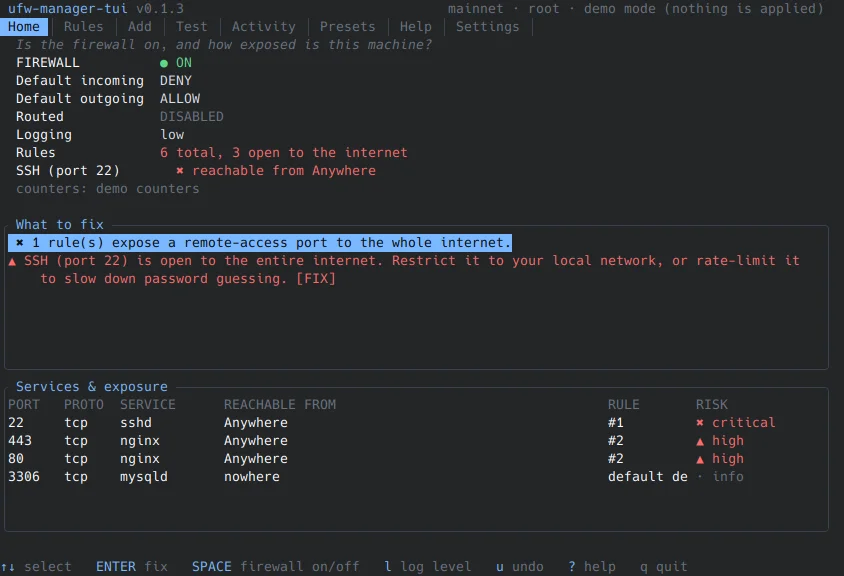
The Home tab answers the question every newcomer asks first: "Is my firewall actually protecting me right
now?" It shows the firewall status, your default policies, how many rules you have, and — most importantly
— a list of suggested fixes computed by the built-in risk engine. SSH open to the whole internet? It
tells you, and offers a one-key fix.
4.2 Rules Tab
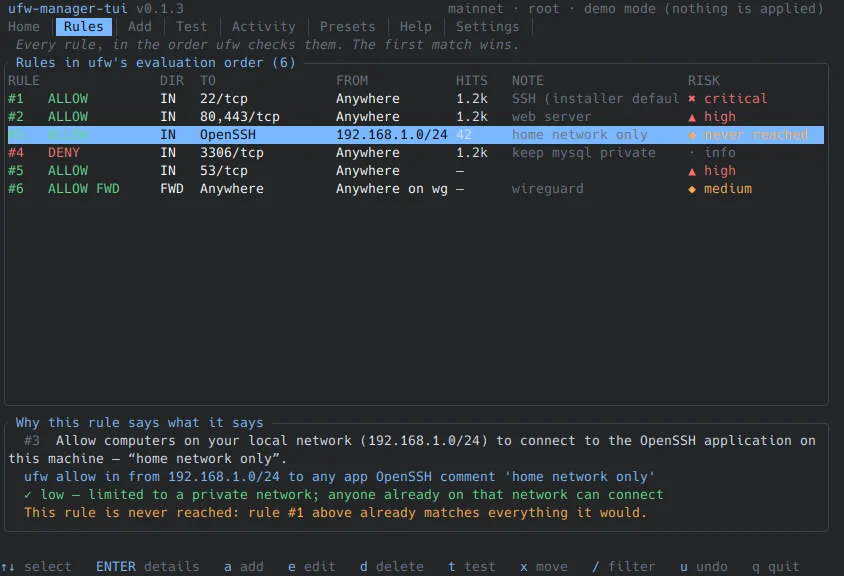
The main workspace. Every rule is shown in ufw's evaluation order — the single most important concept in
firewall configuration — with its hit count, its note, and a risk badge. Select a rule and the detail pane
under the table explains it as a sentence, shows the exact ufw command, and lists the risk reasons. This
is how the app teaches you the syntax without a tutorial.
4.3 Add Tab
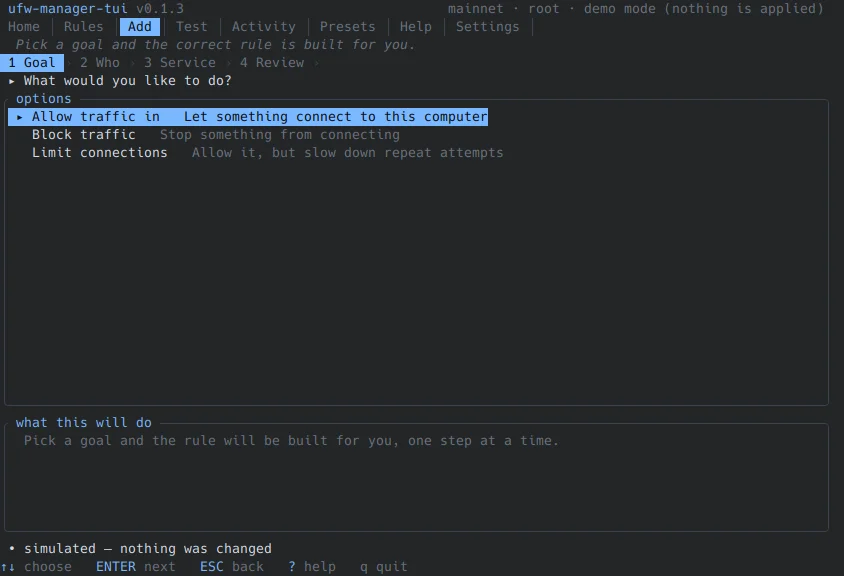
A guided wizard that asks you three plain-English questions:
- What do you want to do? — Allow traffic in, block traffic, or limit connections.
- Who should it apply to? — Only your local network (auto-detected), one specific address, or anywhere
on the internet. - Which service? — SSH, web server, file sharing, database, an app profile, or a custom port.
Then comes the review screen: the rule as a sentence, the exact command that will run, the risk assessment,
and a button to test the rule first against simulated traffic. One keypress applies it.
4.4 Test Tab
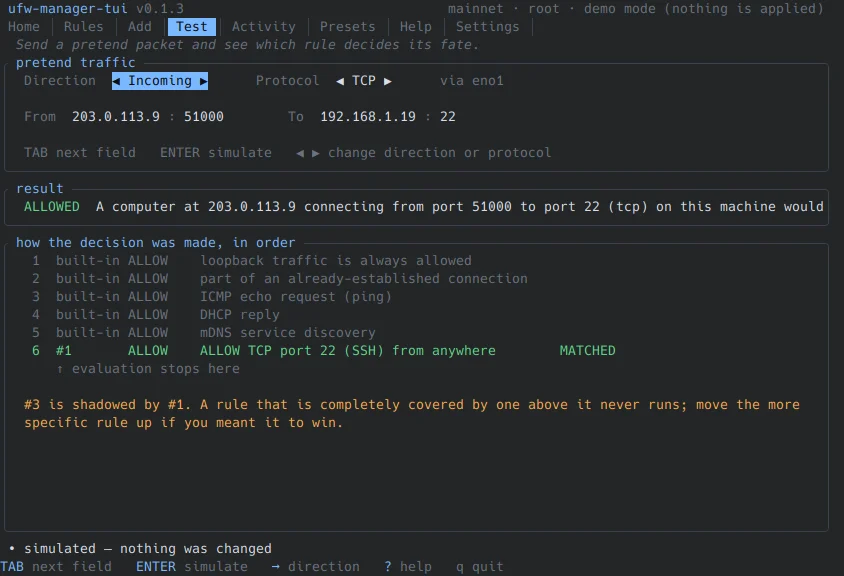
Send a pretend packet and watch which rule decides its fate, step by step. The simulator models ufw's
built-in behaviour (loopback, established connections, invalid packets, ICMP echo, DHCP, mDNS) and then
applies your rules in order. It even detects the classic mistake: a broad rule above a narrow one means the
narrow rule never runs — and offers to fix the order for you.
4.5 Activity Tab
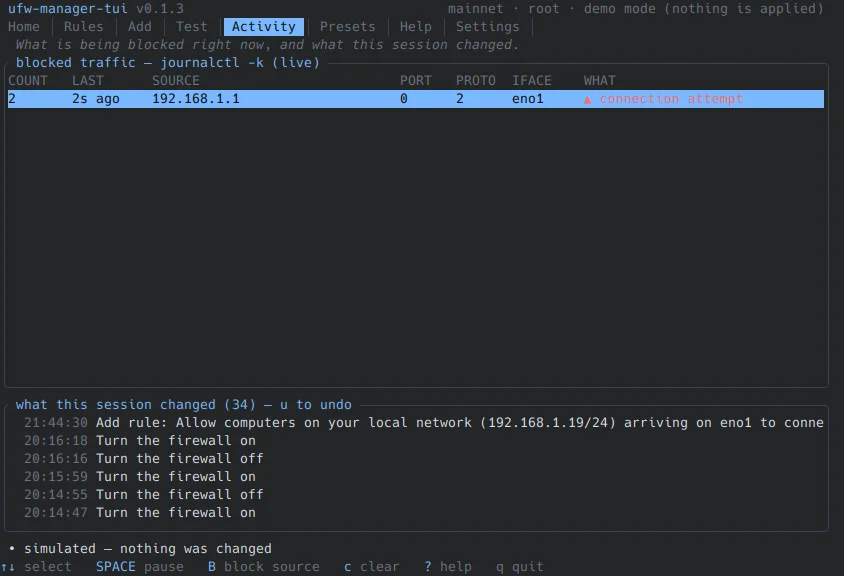
Two panes. The live blocks pane tails your ufw log and aggregates it, so a port scan does not scroll the
screen — you see counts, last-seen times, and a one-key "block this IP" action. The change journal lists
everything this app did this session, newest first, with a one-key undo.
4.6 Presets Tab
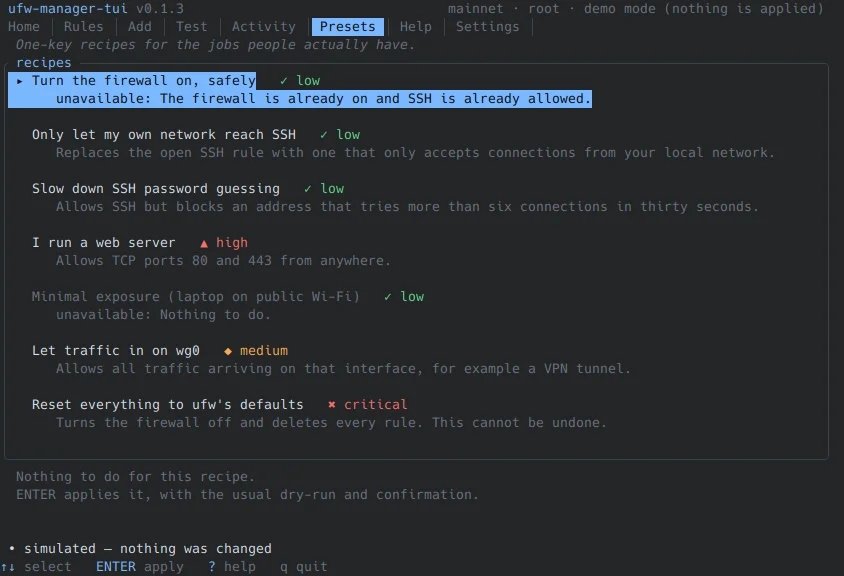
One-key recipes for common situations:
- Turn the firewall on (safe default)
- Lock out the internet, keep yourself in
- Rate-limit SSH (mitigates brute force)
- I run a web server
- Block an IP address
- Allow a desktop app
- Minimal laptop on public Wi-Fi
- Undo everything, back to ufw defaults
- Allow my VPN subnet
- Allow a game/voice server
Each preset shows its plain-English explanation, the command it runs, and its risk level before you apply it.
4.7 Help Tab
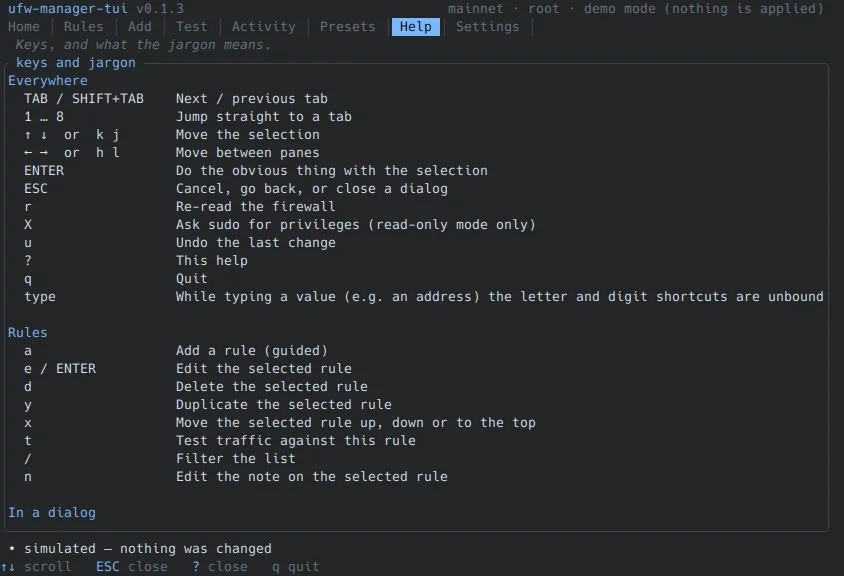
The keymap and a plain-English glossary of every term you will meet: port, ALLOW vs DENY vs REJECT
vs LIMIT, IN vs OUT, Anywhere, 192.168.0.0/24, interface, rule order, default policy,application profile, and more. Press ? anywhere to get here.
5. The safety model
This is the heart of the tool. ufw-manager-tui is designed so that a mistake costs you a keypress, not your
server.
ufwis the only writer. The app shells out to it with an argument vector (never a shell string) and
validates every change withufw --dry-runfirst. It never edits/etc/ufw/*itself.- Lockout guard. Changing the default policy, turning the firewall on, resetting, or deleting the rule
that currently permits your SSH session are all intercepted before they run. - Reconcile watchdog. After applying a change that flushes the firewall while you are connected over
SSH, a detached copy of the app reverts it after a configurable delay unless you pressYto confirm you
are still connected. This is the one feature no other ufw front end has. - Undo. Every applied change records its inverse; press
uto replay it. Nothing is ever reconstructed
by rewritinguser.rules, which is what corrupts rule sets. - Notes are real ufw comments (
ufw allow 22/tcp comment '…'), not a sidecar file, so they survive edits
made outside the app and never drift out of sync.
6. Key bindings
| Key | What it does |
|---|---|
Tab / Shift+Tab |
Next / previous tab |
1 … 7 |
Jump to a tab |
↑ ↓ |
Move the selection |
← → |
Move between panes, or change a field |
Enter |
Do the obvious thing with the selection |
Esc |
Cancel, go back, close a dialog |
r |
Re-read the firewall |
u |
Undo the last change |
? |
Help and a plain-English glossary |
q |
Quit |
On the Rules tab: a add, e edit, d delete, y duplicate, x move, t test, / filter, n note.
7. Configuration
All settings live in ~/.config/ufw-manager-tui/config.toml and are optional:
theme = "dark"                # dark | light | 16color | mono
confirm_before_apply = true
show_counters = true
counters_refresh_secs = 5
reconcile_seconds = 60        # 0 disables the auto-revert watchdog
ascii_fallback = false
readonly = false
The undo journal lives in ~/.local/state/ufw-manager-tui/journal.json.
8. Honest limitations
- Hit counters are read from
nftand mapped to rule numbers by position. Alimitrule expands into
several kernel rules, so when the counts do not line up exactly the column shows—rather than a guessed
number. Wrong numbers would be worse than none. - The simulator is a model, not the kernel. It is labelled as simulated for that reason.
ufw statusoutput is text. It is parsed defensively, and any row that cannot be understood is shown
verbatim and left read-only — never dropped, so rule numbering stays consistent.- If the process is killed with
SIGKILL, the terminal may be left in raw mode.resetfixes it.
9. What it deliberately does not do
- Raw
iptables/nftablesediting — the wrong abstraction for this audience. - NAT, port forwarding, VPN or route configuration. Forward (
FWD) rules are shown, and read-only. - Container-managed rules: Docker writes its own
iptableschains that bypassufw. Those are invisible
here, as they are toufwitself. - A daemon, a web UI, or multi-host management.
10. FAQ
Do I need to be root?ufw only shows and changes rules when it runs as root. Start with sudo ufw-manager-tui for everything,
or run unprivileged for a read-only view. The app is honest about what it cannot see rather than pretending.
Is it safe to try?
Yes — ufw-manager-tui --demo runs against a fake firewall. Nothing on your system is read or changed.
What if I break my SSH connection?
The lockout guard blocks the changes it can predict, and the reconcile watchdog automatically reverts the
ones it cannot — unless you confirm you are still connected.
Is it free?
Yes. MIT licensed, open source, no telemetry, no network access.
🚀 Get Started Today
- Install it:
cargo install ufw-manager-tui - Try it safely:
ufw-manager-tui --demo - Run it for real:
sudo -- ufw-manager-tui
🔗 Links & Resources
- Official website: https://www.yourdev.net/ufw-manager-gui
- Repository: https://www.github.com/ernos/ufw-manager-tui
- Crate on crates.io: https://crates.io/crates/ufw-manager-tui
- Contact: https://www.yourdev.com/#contact
Author: Maximilian "Ernos" Cornett
Have questions, suggestions, or found a bug? Send me an email by visiting my website
https://www.yourdev.com/#contact.
Need an Android Developer or a full-stack website developer?
I specialize in Kotlin, Jetpack Compose, and Material Design 3. For websites, I use modern web technologies to create responsive and user-friendly experiences. Check out my portfolio or get in touch to discuss your project.

Comments (0)
All comments are reviewed before they are published.
Be the first to comment!